
Android → Windows
YouTube on the PC. The remote in your hand.
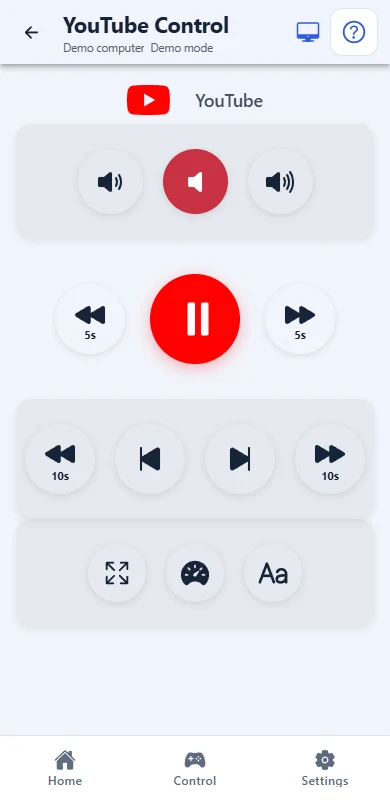
Pause the video or jump back without leaving the sofa. Your Android phone controls YouTube already open on your Windows PC.
Tap on the phone. The video pauses on the PC.
Result on the PCVideo playing
Free on your local network
Windows download available. Android public download is not available yet.
Keep YouTube active on the PC, with focus in the video player and an English keyboard layout.
What you can do
Pause, resume, seek
Play/pause and jump back or forward 10 seconds. The ±5-second buttons use the arrow keys and require focus on YouTube's seek bar.
Control the video sound
Mute the video or change its volume. The volume arrows also depend on player focus. For the Windows output volume, use the Media remote.
Navigate playback
Next video follows YouTube's shortcut behaviour; previous video requires a playlist. Captions require an available caption track. The speed button increases playback speed.
Android → Windows
Set up your remote
Enable the YouTube module and its keyboard shortcuts in the desktop app. Open YouTube on the PC, click the video player and use an English keyboard layout in Windows. Keep the player active while using the remote.
From installation to your first command
One Omni Remote, with an app on each device. The PC must be on and the desktop app running.
- 1
Install on both devices
Install Omni Remote on your Windows PC and Android phone. The download options are listed below.
- 2
Pair on a trusted local network
On the PC, open Connect devices → Direct connection → Pair a phone. On Android, choose Add a computer and scan the QR, or enter the displayed address and code. Check and approve your phone on the PC.
- 3
Open your remote
Enable the modules you need in the desktop app. Choose your PC on the phone and open a remote to start controlling it.
Start with a direct connection
Direct · Free
Connect both devices to your home network: the PC can use a cable and the phone Wi-Fi. Approve pairing on the PC. These remotes work directly without an account or subscription.
Over the internet · Premium
Cloud control is included with Premium. Connect both devices to the internet, sign in with a verified account and enable cloud on the PC. You can control your own computer or one shared with you; both people need cloud access for invitations.
Cloud traffic is encrypted in transit. Connection and privacy details
Compare Free and Premium Current prices and subscription options are shown in the Android app.
If something does not work
A button does not respond or types a letter
Use the Mouse remote to click the YouTube player, away from search and comment fields, and check the English keyboard layout. The fullscreen button can sometimes fail to respond; use Mouse to click the fullscreen control in the player if needed.
How do I find and select a video?
Use the Mouse and Keyboard remotes to search YouTube and open a video on the PC. Return to the YouTube remote to pause, seek and change the video sound.
Why can the playback icon differ from the video?
The phone icon changes when you tap it; it does not read the current video state. Check playback on the PC screen.
The phone cannot connect to the PC
Check that the PC is awake, Omni Remote is running, and both devices are on the same trusted LAN. Guest Wi-Fi or client isolation can block access. Allow Omni Remote through the Windows firewall on your trusted private network; do not disable the firewall. Reopen expired pairing and approve your phone. If trust was revoked or reset, pair again. Cloud also needs verified email, active rights and cloud enabled on the PC.
Get Omni Remote on both devices
Install the Windows app on the PC you want to control and get the Android remote from Google Play. Use compatible versions of both apps, then pair your phone with the PC.
Download
Download Omni Remote
Choose the apps for your computer and phone.
1. On your computer
2. On your phone
Android™
Connects your phone to the desktop service.
- Install the apps on your PC and phone.
- Connect on the same trusted LAN, or sign in and enable cloud access.
- Enable the modules you need and open their controls on your phone.
Android, Google Play and the Google Play logo are trademarks of Google LLC.