
Android → Windows
Your phone becomes a mouse. And a keyboard.
Move a finger to move the Windows pointer. Switch remotes to send text — handy when the PC is across the room.
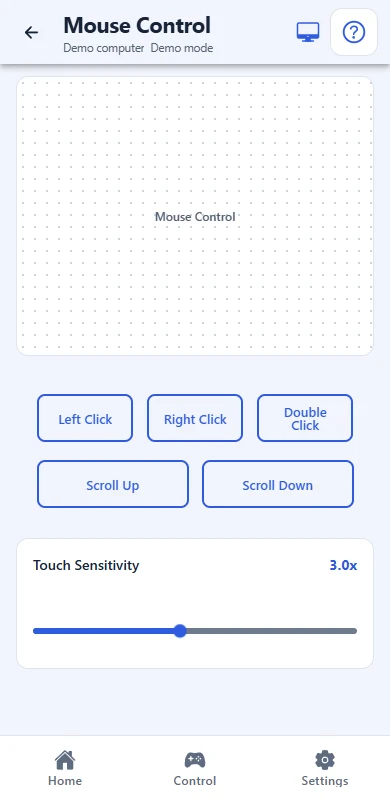
Your finger moves. The Windows pointer follows.
Result on the PCPointer ready
Free on your local network
Windows download available. Android public download is not available yet.
Watch the PC screen. Mouse and keyboard input goes to the active Windows app.
What you can do
Point and click
Use the touch area to move the pointer. Dedicated buttons provide left, right and double click. Adjust sensitivity in the remote.
Scroll from the sofa
Scroll the active page with the up and down buttons. Browse a website from the sofa, then switch to another remote when you need it.
Send text and keys
Open the Keyboard remote to send typed text to the active field, use its key layout or send available combinations such as copy, paste and undo.
Android → Windows
Set up your remote
Enable Mouse and Keyboard on the PC and choose that computer on your phone. Watch the PC screen and click the intended field before sending text. Use these remotes after signing in to Windows; approve protected system prompts on the PC.
From installation to your first command
One Omni Remote, with an app on each device. The PC must be on and the desktop app running.
- 1
Install on both devices
Install Omni Remote on your Windows PC and Android phone. The download options are listed below.
- 2
Pair on a trusted local network
On the PC, open Connect devices → Direct connection → Pair a phone. On Android, choose Add a computer and scan the QR, or enter the displayed address and code. Check and approve your phone on the PC.
- 3
Open your remote
Enable the modules you need in the desktop app. Choose your PC on the phone and open a remote to start controlling it.
Start with a direct connection
Direct · Free
Connect both devices to your home network: the PC can use a cable and the phone Wi-Fi. Approve pairing on the PC. These remotes work directly without an account or subscription.
Over the internet · Premium
Cloud control is included with Premium. Connect both devices to the internet, sign in with a verified account and enable cloud on the PC. You can control your own computer or one shared with you; both people need cloud access for invitations.
Cloud traffic is encrypted in transit. Connection and privacy details
Compare Free and Premium Current prices and subscription options are shown in the Android app.
If something does not work
The pointer moves too fast or too slowly
Adjust Touch Sensitivity in the Mouse remote and try a short movement. Check that the intended PC is selected and connected.
Text appears in the wrong place
Windows sends input to the focused field. First click the intended field with the Mouse remote, then send text. Check the keyboard layout for individual keys.
What should I install to get started?
Install Omni Remote on your Windows PC and Android phone. Start both apps, pair your phone with approval on the PC and open Mouse or Keyboard.
The phone cannot connect to the PC
Check that the PC is awake, Omni Remote is running, and both devices are on the same trusted LAN. Guest Wi-Fi or client isolation can block access. Allow Omni Remote through the Windows firewall on your trusted private network; do not disable the firewall. Reopen expired pairing and approve your phone. If trust was revoked or reset, pair again. Cloud also needs verified email, active rights and cloud enabled on the PC.
Get Omni Remote on both devices
Install the Windows app on the PC you want to control and get the Android remote from Google Play. Use compatible versions of both apps, then pair your phone with the PC.
Download
Download Omni Remote
Choose the apps for your computer and phone.
1. On your computer
2. On your phone
Android™
Connects your phone to the desktop service.

- Install the apps on your PC and phone.
- Connect on the same trusted LAN, or sign in and enable cloud access.
- Enable the modules you need and open their controls on your phone.
Android, Google Play and the Google Play logo are trademarks of Google LLC.